APNs credentials (iOS)
How to create the APNs .p8 key at Apple, gather Key ID, Team ID and Bundle ID, and add them to PushMesh, with screenshots — what iOS needs for push to go out.
APNs credentials (iOS)
On iOS, the thing that delivers the notification is APNs (Apple Push
Notification service). For PushMesh to send on behalf of your app, it needs the
.p8 key (token-based auth) and three identifiers: Key ID, Team ID,
and Bundle ID. Without them the send returns 200 but iOS never receives.
Two sides: create at Apple and paste into PushMesh.
1. Create the .p8 key at Apple
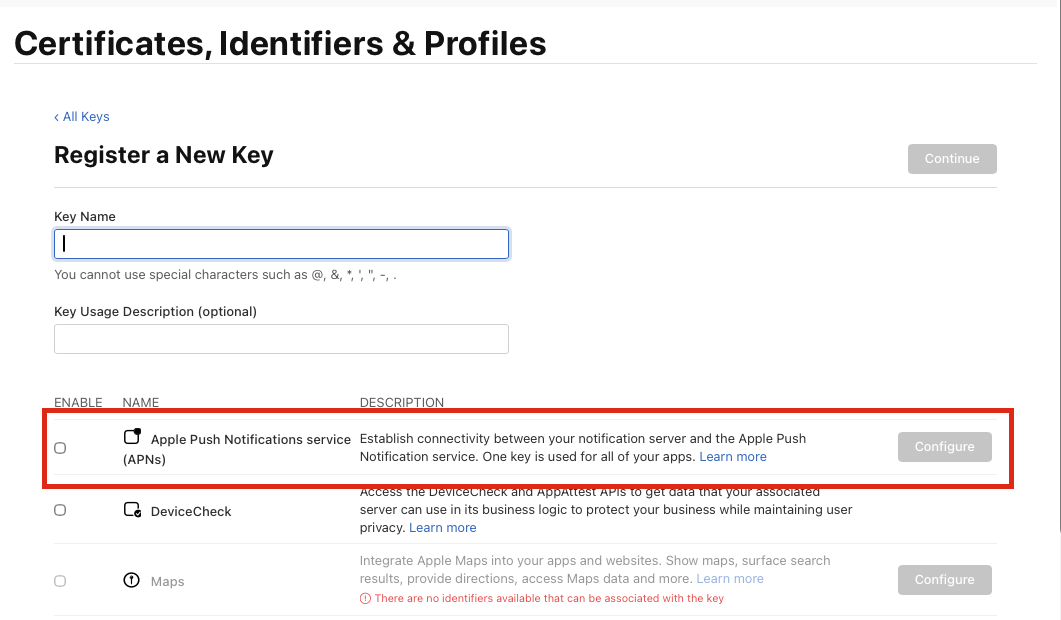
At developer.apple.com go to Certificates, IDs & Profiles › Keys and click +. Name it, check Apple Push Notifications service (APNs), then click Continue and Register.
2. Download the .p8 and note the Key ID
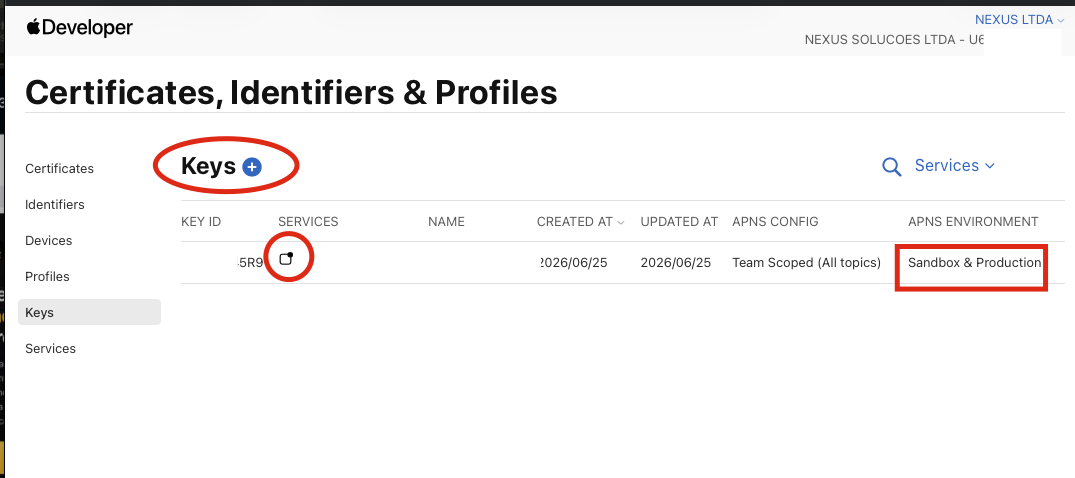
In the Keys list, the key shows its Key ID (10 characters) and a
download icon — download the .p8 file. Note the Sandbox & Production
environment: a single key serves both worlds.
The
.p8can be downloaded only once. If you lose it, generate a new key.
You need two more values:
- Team ID — 10 characters, under Apple Developer › Membership, next to the account name.
- Bundle ID — the app identifier in reverse-dns
(e.g.
io.pushmesh.expolab), under Identifiers or in Xcode’s Signing & Capabilities.
3. Paste into PushMesh and choose the environment
At https://app.pushmesh.io, open the app and go to the APNs (iOS) section.
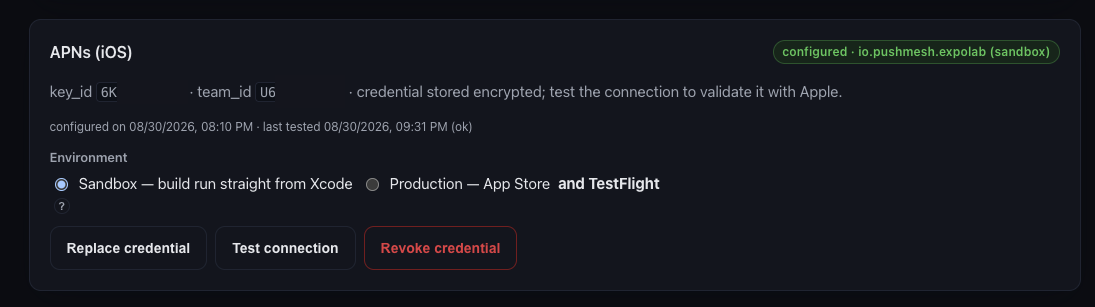
Enter Key ID, Team ID, and Bundle ID, upload the .p8 file (or
paste its contents) and click Save credential.
Choose the Environment:
- Sandbox — app run straight from Xcode.
- Production — App Store and TestFlight (TestFlight is production — the most common mistake).
The same key serves both; switching the environment takes effect immediately. Click Test connection — green confirms Apple accepted the key.
FAQ
Test connection passed, but iOS doesn’t receive. It is almost always the environment: a TestFlight build is production, not sandbox. Adjust it in the APNs section; the key stays the same.
I lost the .p8. You cannot download it again. Generate a new key (step 1)
and use Replace credential.
One key for several apps? Yes — the key belongs to your Apple account. What changes per app is the Bundle ID.
What about Android? Android uses FCM, not APNs. See Firebase credentials (Android).